WorkOutDoors can connect to many types of Bluetooth sensors including:
Cadence
Pace and Distance
Heart Rate
Power (including the Stryd footpod)
Heart rate sensors can be used with any activity type, but the other sensor types will currently only work for running or cycling (indoors or outdoors in both cases). The app cannot yet connect to fitness machines such as treadmills, bikes, stair climbers etc.
The Apple Watch has a limit of 2 bluetooth connections in total across all third party apps. This does not include headphones connected to watchOS or heart rate sensors connected via watchOS. So if you want to connect 3 sensors and one of them is a HR sensor, then pair that via watchOS.
The main advantage of connecting heart rate sensors via WorkOutDoors instead of via watchOS is that WorkOutDoors can read heart rate variability (HRV) from sensors that provide it.
Pairing a Sensor
WorkOutDoors 앱은 다음과 같은 다양한 유형의 Bluetooth 센서와 연결할 수 있습니다:
• 케이던스 (Cadence)
• 페이스 및 거리 (Pace and Distance)
• 심박수 (Heart Rate)
• 파워 (Power, Stryd 발 센서 포함)
심박수 센서는 모든 활동 유형에서 사용할 수 있지만, 다른 센서 유형은 현재 러닝과 사이클링(실내 및 실외 모두)에만 사용할 수 있습니다. 앱은 아직 러닝머신, 자전거, 계단 오르기 기계 등의 피트니스 기계와 연결되지 않습니다.
Apple Watch는 모든 서드 파티 앱에서 총 2개의 Bluetooth 연결만 허용합니다. 이 제한에는 watchOS를 통해 연결된 헤드폰과 심박수 센서는 포함되지 않습니다. 따라서 3개의 센서를 연결하려면 그중 하나가 심박수 센서인 경우 watchOS를 통해 연결하세요.
심박수 센서를 WorkOutDoors로 연결할 경우, HRV(심박 변동성) 데이터를 읽을 수 있는 것이 주요 장점입니다.
센서 페어링

Sensors can be paired on the watch or in the iPhone app. In both cases go to the settings and select Sensors and then choose the activity type. Then tap "Scan for Nearby Sensors" and your sensor should be displayed. If it is not shown then please see the Troubleshooting section
Below the pairing section is where you configure which of your paired sensors is used for each type of metric. If you have only paired one sensor capable of providing the metric then the app will default to using that sensor. If you have more than one then it will default to using the watch for that metric unless you choose which sensor to use.
So for example if you have one heart rate sensor paired then it will automatically be used for heart rates. If however you have several bike cadence sensors paired (e.g. on different bikes) then you will need to choose one.
Tyre Diameter (for Cycle Speed/Distance)
Speed/Distance sensors for cycling simply count the number of revolutions of the wheel, so the app needs to know the diameter of the tyre in order to calculate its circumference and therefore the distance travelled for each revolution.
센서는 워치 또는 iPhone 앱에서 페어링 할 수 있습니다. 설정에서 센서를 선택한 후 활동 유형을 선택하고 근처 센서 검색을 탭 하면 센서가 표시됩니다. 센서가 나타나지 않으면 문제 해결 섹션을 참고하세요.
페어링 섹션 아래에서는 각 메트릭 유형에 사용할 페어링 된 센서를 설정할 수 있습니다. 하나의 센서만 페어링 된 경우 앱이 자동으로 해당 센서를 사용하지만, 여러 개가 있는 경우 기본적으로 워치의 센서를 사용하도록 설정됩니다.
예를 들어, 심박수 센서를 하나만 페어링 했다면 자동으로 심박수 데이터에 사용됩니다. 여러 개의 자전거 케이던스 센서를 페어링 한 경우, 특정 센서를 선택해야 합니다.
타이어 지름 (사이클 속도/거리)
사이클 속도/거리 센서는 바퀴의 회전 수를 카운트하여, 각 회전의 이동 거리를 계산하기 위해 타이어의 지름을 알고 있어야 합니다.
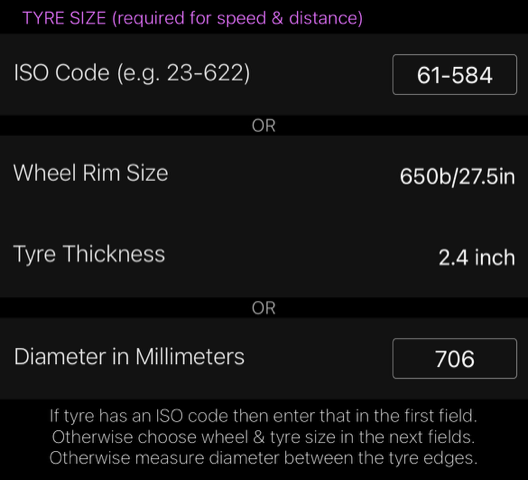
The app provides 3 ways for you to enter the diameter: by ISO code (e.g. 23-622); by the wheel rim size and tyre thickness (e.g. 650b and 2.4inch); or by just entering the diameter in millimetres.
The easiest way is to use the ISO code, which can usually be found on the tyre. If that doesn't work then enter the rim size and tyre thickness. And if that doesn't work then measure the diameter from the edge of the tyre through the centre of the wheel to the other edge of the tyre.
Calibration & Smoothing
The app allows you to modify the values supplied by the sensor in two ways: calibration & smoothing.
앱은 ISO 코드(예: 23-622), 휠 림 크기와 타이어 두께(예: 650b 및 2.4 인치), 또는 지름을 밀리미터로 직접 입력하는 세 가지 방법을 제공합니다. ISO 코드를 사용하는 것이 가장 쉬우며, 타이어에서 확인할 수 있습니다. 코드가 없는 경우 림 크기와 타이어 두께를 입력하거나, 타이어의 가장자리부터 중심을 지나 반대쪽 가장자리까지 측정하여 지름을 입력합니다.
보정 및 스무딩
앱에서는 보정과 스무딩을 통해 센서에서 제공하는 값을 수정할 수 있습니다.

Calibration allows you to apply a multiplication factor to the values. This defaults to 1.000 but can be adjusted in thousandths. So for example if you set the calibration factor to 0.999 and a distance sensor supplies a distance of 10.0 miles then the app will show 9.99 miles.
Smoothing allows you to generate the value from the average of the last 'n' values supplied by the sensor. So if the smoothing factor was 3 and a power sensor was supplied values of 100, 110, 120, 130 then the app would use 100, (100+110)/2 = 105, (100+110+120)/3 = 110, (110 + 120 + 130)/3 = 120 etc.
Starting a Workout
When you start a workout for an activity that has paired sensors that are configured to supply any of the metrics then the app will display the sensor connection screen.
• 보정: 기본값은 1.000으로, 천분의 단위로 조정할 수 있습니다. 예를 들어, 보정 값을 0.999로 설정하면 거리 센서에서 10.0 마일로 제공한 거리가 앱에선 9.99 마일로 표시됩니다.
• 스무딩: 센서가 제공하는 최근 ‘n’ 개의 값 평균을 계산하여 값을 생성합니다. 예를 들어, 스무딩 값이 3일 때, 파워 센서가 100, 110, 120, 130을 제공했다면, 앱은 100, (100+110)/2 = 105, (100+110+120)/3 = 110, (110 + 120 + 130)/3 = 120 등의 값을 사용합니다.
운동 시작하기
센서를 설정한 활동 유형에서 운동을 시작할 때, 앱은 센서 연결 화면을 표시합니다.
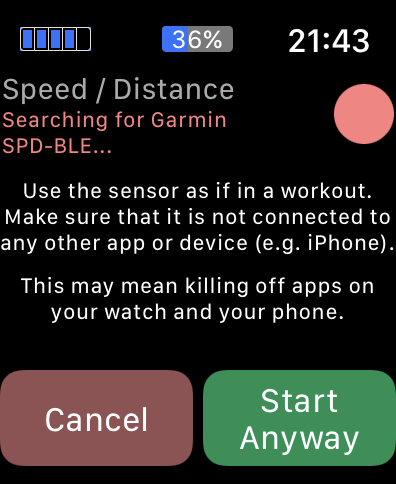
The connection screen will only be visible until the app has connected to the sensors. It will then disappear and the workout will start automatically. This means that it may only be visible briefly if the sensors are found immediately. It also means that if you are cycling for example, then the pedalling will wake the sensors and so the app will automatically connect and start the workout when you start pedalling.
If the sensors fail to connect then please see the Troubleshootingsection. If you want to start without using the sensors then tap the Start Anyway button.
Note that both the sensor connection screen and the countdown can be disabled in the settings if required.
Troubleshooting
If you are having problems finding or connecting to a sensor, then please check the following:
- Try using the sensor in the way it would be used during a workout. For example spin the pedals for cadence sensors on a bike.
- Make sure you are only using a maximum of two sensors, which is the most number of Bluetooth connections that watchOS allows for third party apps. This includes other apps, so kill off any other apps that may be using Bluetooth.
- Check that the sensor is not connected to another device or another app on either the watch or the iPhone. Sometimes this may require you to kill off the other app and also remove it from the dock on the watch. The Stryd watch app is often guilty of connecting to the sensor when it shouldn't.
To remove an app from the dock press the side button, find the app in the resulting list, and then swipe left so that a big red cross appears. Then tap the cross. To kill off the app make sure that it is on the screen and then press and hold the side button until the power off menu appears. Then press the crown until you see the app disappear in the background.
연결이 완료되면 화면은 사라지고 운동이 자동으로 시작됩니다. 센서가 즉시 연결되면 잠시 동안만 화면이 표시될 수 있으며, 예를 들어 자전거를 탈 경우 페달을 돌리면 센서가 활성화되고 운동이 자동으로 시작됩니다. 센서 연결에 실패하면 문제 해결 섹션을 참고하세요. 센서 없이 시작하려면 Anyway Start 버튼을 탭 하세요.
참고로, 설정에서 센서 연결 화면과 카운트다운을 비활성화할 수 있습니다.
문제 해결
센서 검색 또는 연결에 문제가 있는 경우 다음을 확인하세요:
• 센서를 운동 중 사용할 방식으로 사용해 보세요. 예를 들어, 자전거 케이던스 센서는 페달을 돌려 활성화합니다.
• 최대 두 개의 센서만 사용하세요. 이는 모든 서드 파티 앱에서 Bluetooth 연결이 가능한 최대 수입니다. 다른 앱에서 Bluetooth를 사용 중일 수 있으므로, 다른 앱을 모두 종료해 보세요.
• 센서가 워치 또는 iPhone의 다른 기기나 앱에 연결되지 않았는지 확인하세요. Stryd 워치 앱은 종종 센서에 불필요하게 연결됩니다.
앱을 Dock에서 제거하려면 측면 버튼을 눌러 앱 목록을 연 후 앱을 왼쪽으로 스와이프 하여 빨간색 “X” 아이콘을 탭 하세요. 앱을 종료하려면 화면에 앱을 표시한 상태에서 측면 버튼을 길게 눌러 전원 끄기 메뉴가 나타나도록 한 다음, 크라운을 눌러 백그라운드에서 앱을 종료할 수 있습니다.
[사진 출처 : Workoutdoors 어플]
'소소한일상 > Workoutdoors' 카테고리의 다른 글
| [Workoutdoors] Calibrate your Apple Watch (0) | 2024.11.15 |
|---|---|
| [Workoutdoors] Guide to Interval Schedule - KOR version (0) | 2024.11.13 |
| User Guide(한글버젼)-Workoutdoors (3) | 2024.10.17 |