Calibrate your Apple Watch for improved Workout and Activity accuracy
You can calibrate your Apple Watch to improve the accuracy of your distance, pace, and calorie measurements. Calibrating your watch can also help it learn your fitness level and stride, which improves accuracy when GPS is limited or unavailable.
✔️Check your settings
To make sure that your Apple Watch can get the information it needs, check these settings on your iPhone:
1. On your iPhone, open the Settings app.
2. Tap Privacy & Security > Location Services.
3. Make sure that Location Services is turned on.
4. Scroll down, then tap System Services.
5. Make sure that Motion Calibration & Distance is turned on.
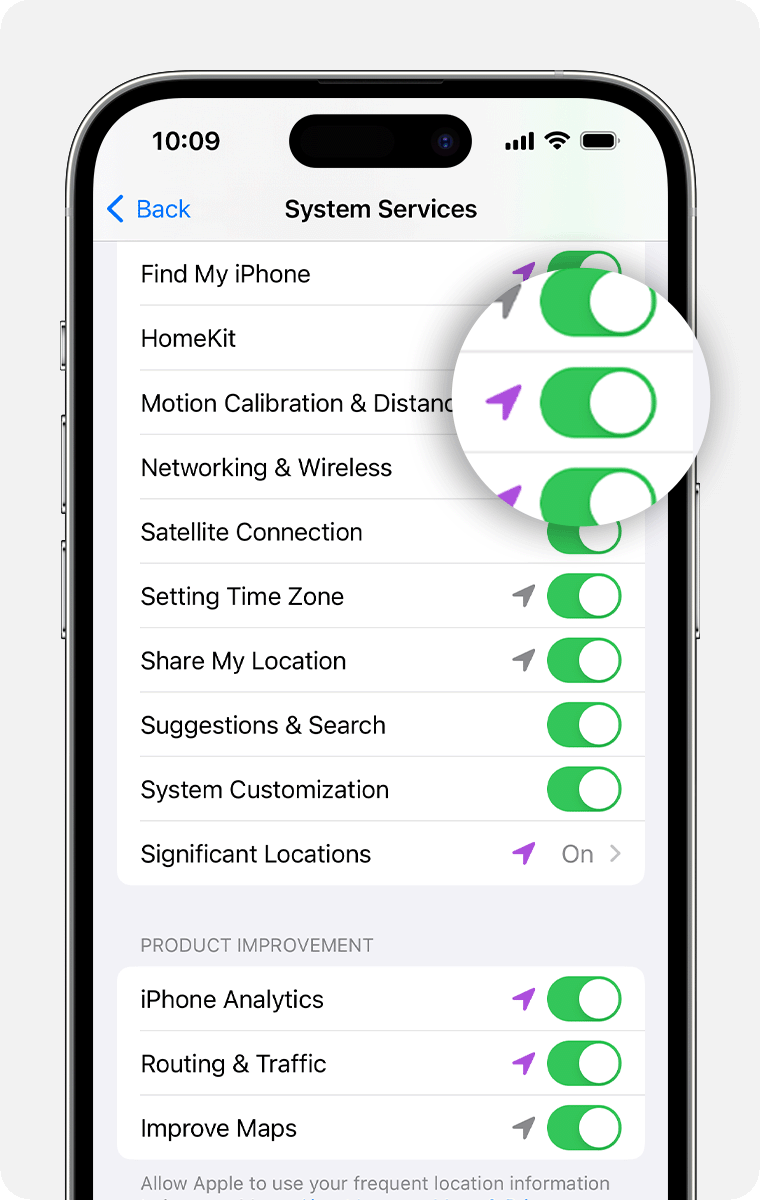
Continue with the steps below.
Apple Watch를 보정하여 운동 및 활동 정확도 향상하기
Apple Watch를 보정하면 거리, 페이스, 칼로리 측정의 정확도를 높일 수 있습니다. 보정은 GPS가 제한되거나 사용할 수 없을 때 Apple Watch가 사용자의 체력 수준과 보폭을 학습하여 정확성을 높이는 데도 도움이 됩니다.
✔️설정 확인하기
Apple Watch가 필요한 정보를 받을 수 있도록 iPhone에서 다음 설정을 확인하세요:
1. iPhone에서 “설정” 앱을 엽니다.
2. “개인 정보 보호 및 보안” > “위치 서비스”를 탭합니다.
3. 위치 서비스가 켜져 있는지 확인하세요.
4. 아래로 스크롤하여 “시스템 서비스”를 탭합니다.
5. “모션 보정 및 거리”가 켜져 있는지 확인하세요.
이제 아래의 단계로 계속 진행하세요.
✔️Calibrate your Apple Watch
1. While wearing your Apple Watch, go to a flat, open outdoor area that offers good GPS reception and clear skies.
2. If you have Apple Watch Series 2 or later, you just need your Apple Watch.* If you have Apple Watch Series 1 or earlier, bring your iPhone for GPS. Hold your iPhone in your hand, or wear it on an armband or waistband.
3. Open the Workout app, then tap Outdoor Walk or Outdoor Run. To set a goal before starting, tap the More button.
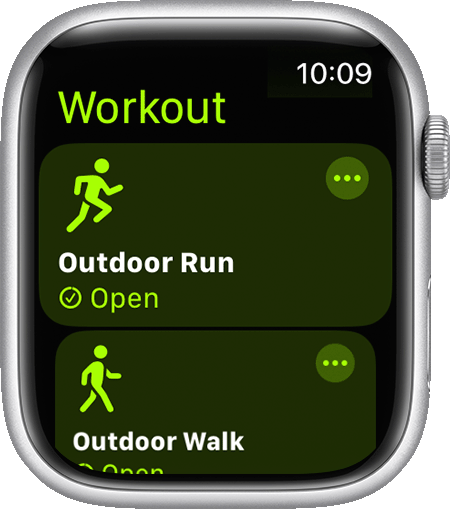
Walk or run at your normal pace for about 20 minutes.
If you don't have time to finish the workout, you can complete 20 minutes over multiple outdoor Workout sessions. If you work out at different speeds, you should also calibrate for 20 minutes at each of the speeds that you walk or run.
Whenever you walk or run outside using the above steps, your Apple Watch continues to calibrate the accelerometer by learning your stride length at different speeds. Calibration can also improve the accuracy of your calorie calculations in the Workout app, and the calorie, distance, Move, and Exercise calculations in the Activity app.
✔️Apple Watch 보정하기
Apple Watch를 착용한 상태에서 GPS 수신이 잘 되는 넓고 평평한 야외 장소로 이동하세요.
• Apple Watch Series 2 이후 모델을 사용하는 경우, Apple Watch만 있으면 됩니다.
• Apple Watch Series 1 이전 모델을 사용하는 경우 GPS용으로 iPhone을 함께 가져오세요. iPhone을 손에 들거나 팔 밴드 또는 허리 밴드에 착용하세요.
“운동” 앱을 열고 “야외 걷기” 또는 “야외 달리기”를 탭합니다. 시작 전에 목표를 설정하려면 “더 보기” 버튼을 탭하세요.
일반적인 속도로 약 20분 동안 걷거나 달리세요.
만약 한 번에 20분을 완료할 시간이 없다면 여러 번의 야외 운동 세션에서 20분을 완성할 수 있습니다. 다양한 속도로 운동하는 경우, 걷거나 달리는 각 속도에 대해 20분 동안 보정해야 합니다.
위의 단계에 따라 야외에서 걷거나 달릴 때마다, Apple Watch는 다양한 속도에서의 보폭을 학습하여 가속도계를 지속적으로 보정합니다. 보정은 운동 앱의 칼로리 계산과 활동 앱의 칼로리, 거리, 이동, 운동 계산 정확도도 향상시킬 수 있습니다.
Improve your Workout and Activity accuracy
Your personal information, such as your height, weight, gender, and age, is one of the things your Apple Watch uses to calculate how many calories you burn and more. Learn how to update your personal information.
✔️Reset your calibration data
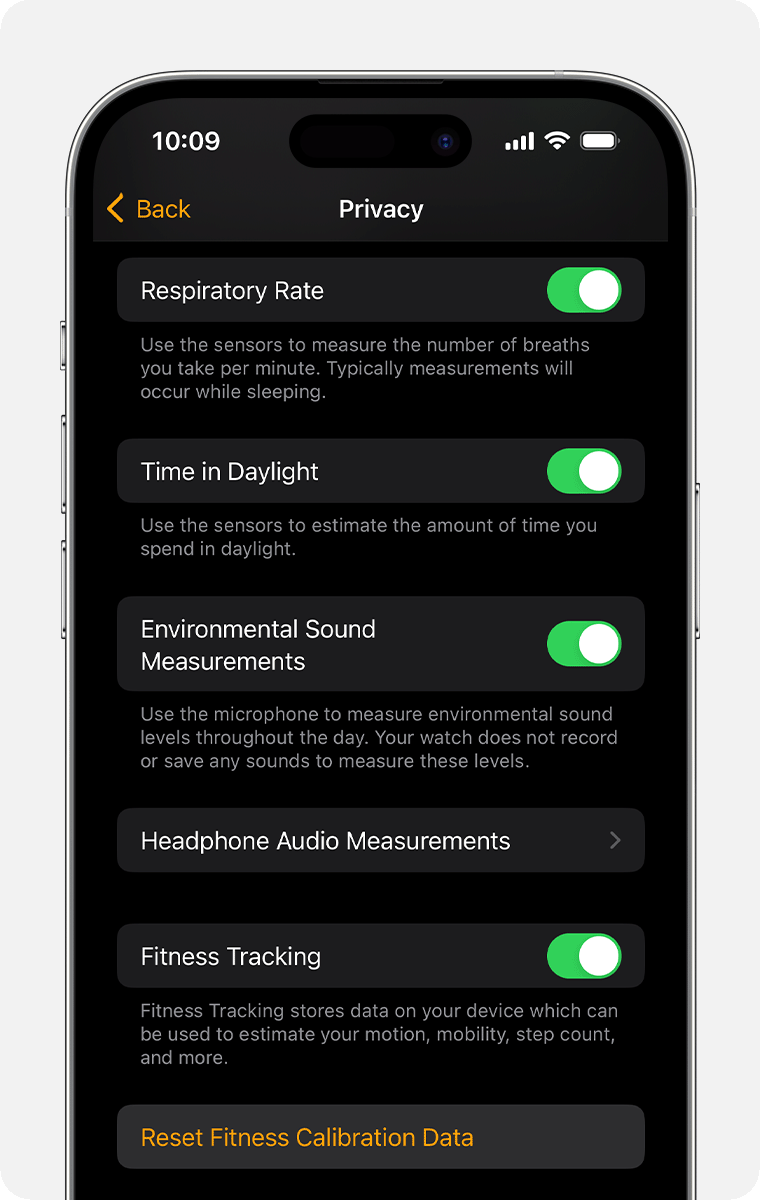
Here's how to reset your calibration data:
1. On your iPhone, open the Watch app.
2. Tap the My Watch tab, then tap Privacy > Reset Fitness Calibration Data.
* Apple Watch Ultra and later, Series 8 and later, and SE (2nd generation) use the built-in Apple Watch GPS even when your iPhone is nearby. To preserve battery life, older Apple Watch models use the GPS from your iPhone when available.
운동 및 활동 정확도 향상하기
키, 체중, 성별, 나이와 같은 개인 정보는 Apple Watch가 소모한 칼로리 등을 계산하는 데 사용하는 요소 중 하나입니다. 개인 정보를 업데이트하는 방법을 확인하세요.
✔️보정 데이터 재설정하기
보정 데이터를 재설정하는 방법은 다음과 같습니다:
1. iPhone에서 “Watch” 앱을 엽니다.
2. “내 시계” 탭을 탭한 후 “개인 정보 보호” > “운동 보정 데이터 재설정”을 탭하세요.
• Apple Watch Ultra 이후 모델, Series 8 이후 모델 및 SE(2세대)는 iPhone이 근처에 있어도 내장된 Apple Watch GPS를 사용합니다. 배터리 수명을 보존하기 위해 구형 Apple Watch 모델은 iPhone의 GPS를 사용할 수 있을 때 이를 사용합니다.
[사진 출처: Workoutdoors]
'소소한일상 > Workoutdoors' 카테고리의 다른 글
| [Workoutdoors] Guide to Sensor - KOR version (1) | 2025.06.24 |
|---|---|
| [Workoutdoors] Guide to Interval Schedule - KOR version (0) | 2024.11.13 |
| User Guide(한글버젼)-Workoutdoors (3) | 2024.10.17 |